# Connect an AI agent with an MCP token
> Create a PilotDeck token in Settings and add it to Claude Code, Cursor or another MCP client to work with one site.
PilotDeck is a growth platform for SEO, GEO and AI visibility. It researches, writes and publishes content for a website, and drafts wait for approval by default.
Published 2026-11-05. [AI assistants](https://docs.pilotdeck.co/ai-assistants). Web page: https://docs.pilotdeck.co/ai-assistants/mcp-token
## When to use a token
PilotDeck runs an MCP server, the open standard AI agents use to connect to other apps. There are two ways to connect to it:
| | Sign-in | MCP token |
| --- | --- | --- |
| Best for | Claude on the web, desktop or mobile, and Claude Code | Cursor, scripts and any MCP client that can send a header |
| How you connect | Sign in to PilotDeck and click Allow | Create a token in Settings and paste it into the agent |
| Expiry | Renewed by the app while in use | Does not expire until you revoke it |
| Guide | [Connect Claude to PilotDeck](https://docs.pilotdeck.co/ai-assistants/claude) | This page |
Both give the agent the same abilities on one site, and both show up in the same list in PilotDeck, where you can revoke them.
## Before you start
| You need | Details |
| --- | --- |
| An active PilotDeck plan | Every plan includes AI agent access. An account without an active plan sees "Your PilotDeck account doesn't have an active plan, so AI agents can't connect." when it tries to create a token. |
| Permission to manage settings | The **AI agents (MCP)** section shows only to people who can manage the account's settings, such as the owner. |
| The right site selected | A token works for the site that is selected in the site switcher when you create it. Switch site first if needed. |
| An MCP client | Any client that supports remote MCP servers over Streamable HTTP and lets you set an `Authorization` header, for example Claude Code or Cursor. |
## Overview
1. Open Settings > Integrations in PilotDeck (You)
2. Create a token under AI agents (MCP) (You)
3. Copy the token or the config (You)
4. Add it to your agent (You)
5. The agent can now work with that site (Verify)
## Step 1: Open AI agents in Settings
*Who: you*
In PilotDeck, open **Settings > Integrations** and scroll to **AI agents (MCP)**. The section shows the server address your agent connects to:
Server address:
```
https://api.pilotdeck.co/mcp
```
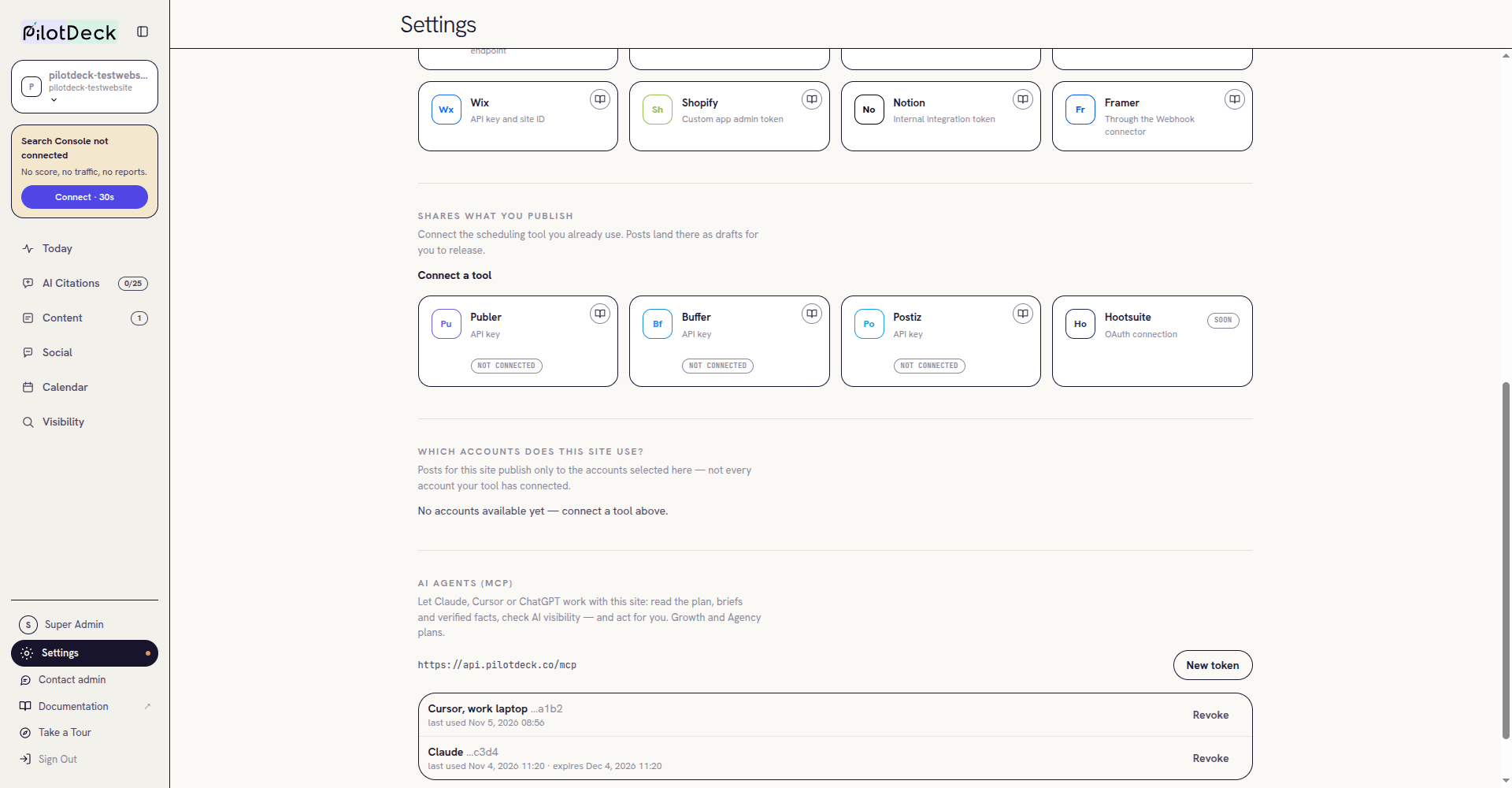
*Settings > Integrations > AI agents (MCP). Personal tokens and sign-in connections share one list. Sample values.*
## Step 2: Create a token
*Who: you*
Click **New token**. The window names the site the token is for. Give the token a name of up to 60 characters that says where it will be used, for example "Cursor, work laptop", so you can recognise it later. The window lists **What the agent can do**. Click **Create token**.
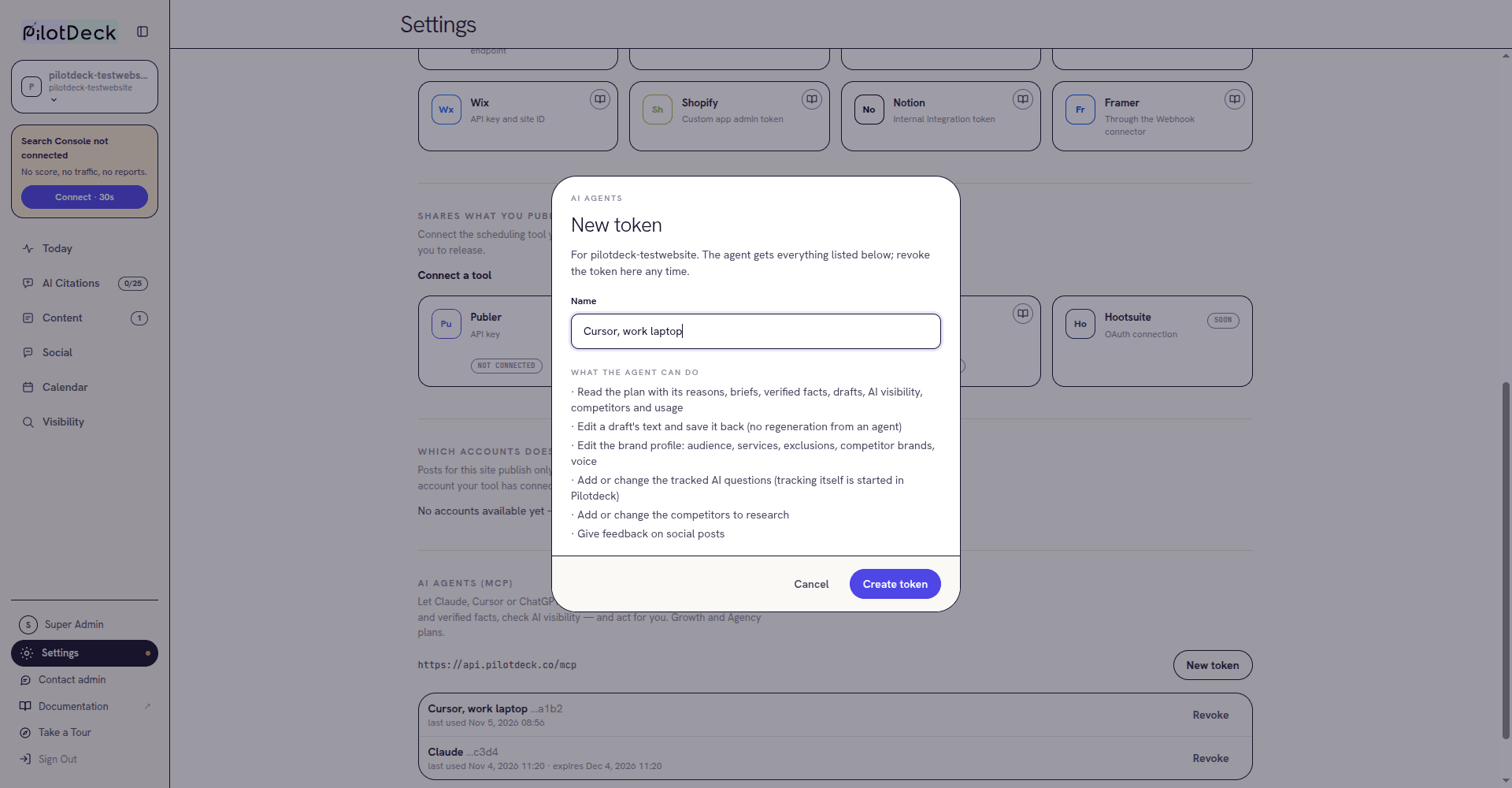
*The window names the site and lists what the agent can do. Sample values.*
> [!WARNING]
> **Copy it now.** The next window, **Copy your token now**, is the only time the token is shown. PilotDeck keeps only a fingerprint of it and cannot show it again. If you lose it, revoke it and create a new one.
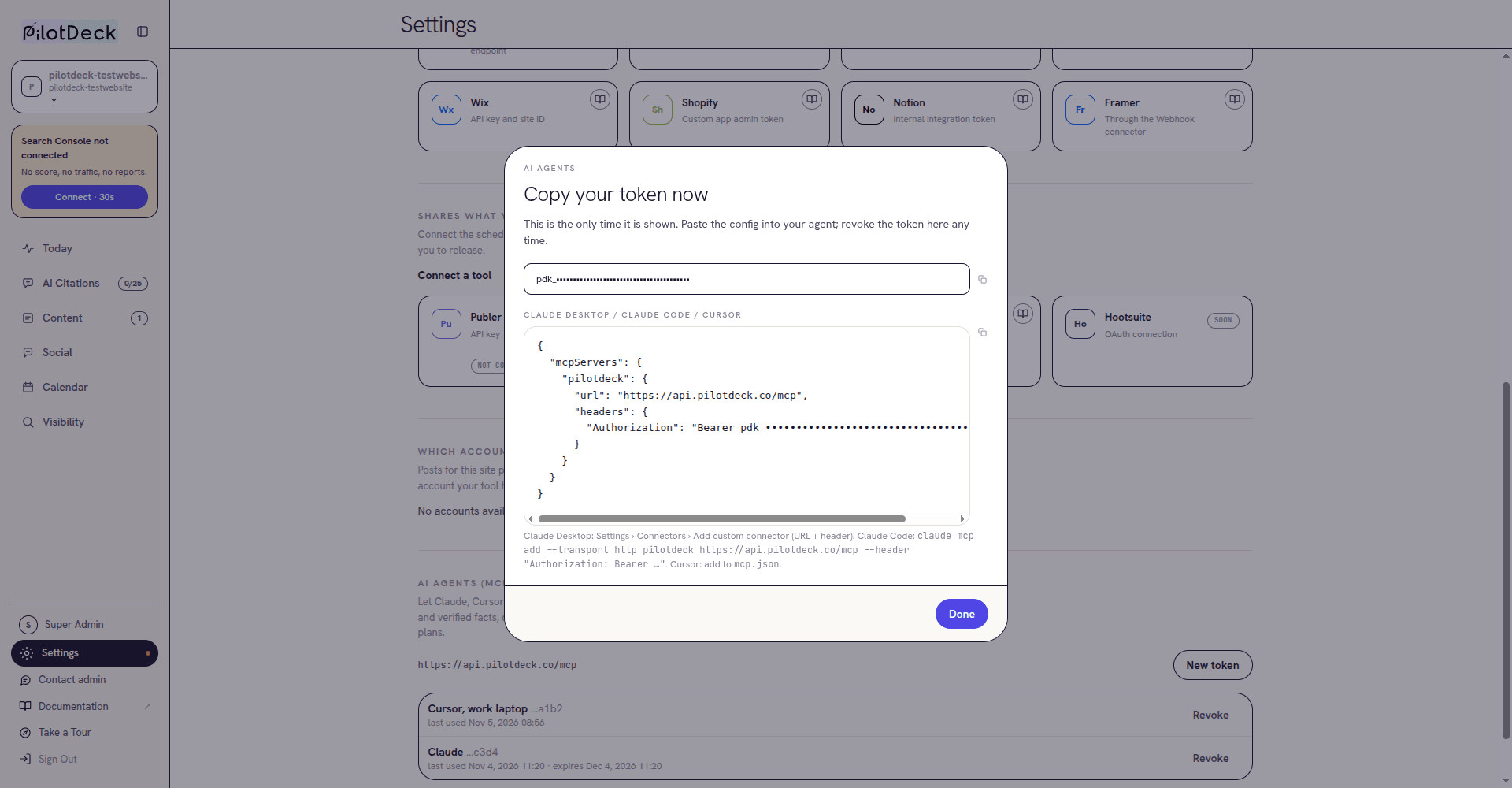
*Copy your token now. The token is hidden here; you see the real one once.*
A token starts with `pdk_`. Treat it like a password: anyone who has it can work with your site as you.
## Step 3: Add the token to your agent
*Who: you*
The window gives you a ready config to copy. Use the option that matches your agent.
### Claude Code
Run this in a terminal, with your token in place of ``:
Terminal:
```
claude mcp add --transport http pilotdeck https://api.pilotdeck.co/mcp --header "Authorization: Bearer "
```
Prefer not to handle a token? Leave out the `--header` part, then run `/mcp` inside Claude Code and choose to authenticate PilotDeck. Your browser opens the PilotDeck sign-in page, where you pick the site and click **Allow**, as in [Connect Claude to PilotDeck](https://docs.pilotdeck.co/ai-assistants/claude#s2).
### Cursor and other config file clients
Paste the copied config into the client's MCP config file, for example `mcp.json` in Cursor:
mcp.json:
```json
{
"mcpServers": {
"pilotdeck": {
"url": "https://api.pilotdeck.co/mcp",
"headers": {
"Authorization": "Bearer "
}
}
}
}
```
### Any other MCP client
| Setting | Value |
| --- | --- |
| Server URL | `https://api.pilotdeck.co/mcp` |
| Transport | Streamable HTTP (sometimes listed as HTTP). Not stdio, not the older SSE transport. |
| Header | `Authorization: Bearer ` |
### Claude Desktop and Claude on the web
These connect with sign-in, not a token. Follow [Connect Claude to PilotDeck](https://docs.pilotdeck.co/ai-assistants/claude).
## Step 4: Check it works
*Who: you, to check the result*
Ask your agent "which PilotDeck site are you connected to?", then "what should this site write next?". It answers from your PilotDeck data. Back in Settings, the token shows a **last used** time.
## What the agent can do
- Read the plan with its reasons, briefs, verified facts, drafts, AI visibility, competitors and usage
- Edit a draft's text and save it back (no regeneration from an agent)
- Edit the brand profile: audience, services, exclusions, competitor brands, voice
- Add or change the tracked AI questions (tracking itself is started in Pilotdeck)
- Add or change the competitors to research
- Give feedback on social posts
A token you create in Settings always gets all of these. The [MCP server reference](https://docs.pilotdeck.co/ai-assistants/mcp-server) lists every tool, its inputs and what it changes.
> [!TIP]
> An agent can never publish to your website, approve or delete content, or reach your other sites. Edited drafts still wait for your review in PilotDeck.
## Manage and revoke tokens
- Every active token is listed under **AI agents (MCP)** with its name, the last four characters of the token, the site if it is not the one you have selected, and when it was last used.
- Connections made by sign-in, such as Claude, appear in the same list with the app's name and an expiry date.
- Tokens you create here do not expire. Revoke the ones you no longer use.
- Click **Revoke**, then **Revoke token**. Any agent using it stops straight away, even in the middle of a task. This cannot be undone. Click **Keep it** to back out.
- You can have up to 20 active tokens, counting sign-in connections. Revoke one to create another.
## Keep tokens safe
- Create one token per tool and machine. If one leaks, you revoke it without breaking the others.
- Keep config files that hold a token out of shared folders and code repositories.
- Do not share a token with a teammate. Each person should sign in and create their own.
- If a token may have leaked, revoke it at once and create a new one.
- Agents can be misled by instructions hidden in text they read elsewhere. Review what your agent plans to change before you approve it.
## Troubleshooting
When something fails, most clients show the HTTP status and the message from PilotDeck.
| Status and message | What to do |
| --- | --- |
| `401` "An API token is required" | The header is missing or not in the form `Authorization: Bearer pdk_...`. Check for a missing `Bearer`, extra quotes or a cut-off token. |
| `401` "This token is not valid or was revoked" | The token was revoked, mistyped, or the account is no longer active. Create a new token. |
| `402` "AI agent access (MCP) needs an active PilotDeck plan." | The subscription was cancelled, a payment failed or the trial ended. The same token works again once the plan is active. Contact support if you think this is wrong. |
| `429` "Rate limit: 60 calls per minute per token" | Wait a minute. Each tool call counts, including every call inside one batch. |
| `400` "A batch may hold at most 20 calls" | The client sent too many calls in one request. Ask it to send fewer at a time. |
| `405` on a GET request | PilotDeck takes POST requests only. Set the client's transport to Streamable HTTP. |
| A tool answers `scope_required` | The connection was made without that ability. Create a token in Settings, which always has every ability. |
## Common questions
**Can I use one token for two sites?**
No. Each token covers one site. Create a separate token for each site, with the right site selected.
**Can I choose which abilities a token has?**
Not in Settings. Every token created there gets all the abilities listed above. Revoke it whenever you want to stop access.
**Can I set an expiry date?**
Not in Settings. Tokens created there last until you revoke them.
**My agent says it is being slowed down.**
Each token can make up to 60 calls a minute. Wait a minute and try again.
**Where can I get help?**
Email [support@pilotdeck.co](mailto:support@pilotdeck.co).
## Official documentation
- [Connect Claude Code to tools via MCP](https://code.claude.com/docs/en/mcp)
- [Model Context Protocol in Cursor](https://cursor.com/docs/mcp)
- [What is the Model Context Protocol](https://modelcontextprotocol.io/introduction)
## Related guides
- [Connect Claude to PilotDeck](https://docs.pilotdeck.co/ai-assistants/claude.md): Sign in with PilotDeck
- [PilotDeck MCP server reference](https://docs.pilotdeck.co/ai-assistants/mcp-server.md): Tools, limits and errors
Need help? [Contact support](mailto:support@pilotdeck.co).