# Connect Claude to PilotDeck
> Connect Claude to one PilotDeck site to review your plan and drafts, check a draft against your rules and track AI visibility from a chat.
PilotDeck is a growth platform for SEO, GEO and AI visibility. It researches, writes and publishes content for a website, and drafts wait for approval by default.
Published 2026-11-05. [AI assistants](https://docs.pilotdeck.co/ai-assistants). Web page: https://docs.pilotdeck.co/ai-assistants/claude
## What the Claude connector does
The PilotDeck connector lets Claude read and work with one of your PilotDeck sites. You ask in plain English, for example "which drafts are waiting for my review?", and Claude answers from your live PilotDeck data: your content plan and the reasons behind it, briefs, drafts, verified facts about your business, AI visibility results, competitors and plan usage.
- **One site only**: You pick one site when you connect. Claude can only see and change that site.
- **Nothing goes live**: Claude can save an edited draft, but it never publishes anything to your website. Drafts still wait for your review in PilotDeck.
- **No keys to copy**: You sign in with your PilotDeck account and click **Allow**. There is no token to paste.
The connector works through the PilotDeck MCP server. MCP is the open standard AI assistants use to connect to other apps. For the full list of tools and limits, see the [MCP server reference](https://docs.pilotdeck.co/ai-assistants/mcp-server).
## Before you start
| You need | Details |
| --- | --- |
| An active PilotDeck plan | Every plan includes AI assistant access. An account without an active plan sees "Your PilotDeck account doesn't have an active plan, so AI agents can't connect." on the sign-in page, and the **Allow** button stays off. |
| Permission to manage settings | The account owner can connect Claude. A team member whose role cannot manage settings sees "Your role can't connect AI agents to this account" and needs an owner or admin to connect instead. |
| A site in PilotDeck | Finish onboarding for at least one site first. With no site, the sign-in page reads "You have no site yet". |
| A Claude account | Claude on the web, the desktop app or the mobile app. On a Claude Team or Enterprise plan, an owner of your Claude organization may need to add the connector before members can use it. |
> [!NOTE]
> Using Claude Code, Cursor or another MCP client instead? See [Connect an AI agent with an MCP token](https://docs.pilotdeck.co/ai-assistants/mcp-token).
## Overview
1. Add PilotDeck as a connector in Claude (You)
2. Sign in to PilotDeck and pick a site (You)
3. Check what Claude can do and click Allow (You)
4. Claude can now work with that site (Verify)
## Step 1: Add PilotDeck as a connector in Claude
*Who: you*
In Claude, open **Settings > Connectors** and choose **Add custom connector**. Give it the name `PilotDeck` and this server address:
Server address:
```
https://api.pilotdeck.co/mcp
```
Leave the OAuth client ID and secret fields empty. PilotDeck registers Claude automatically when you connect. Click **Add**, then **Connect** next to the new connector. Claude opens the PilotDeck sign-in page.
> [!NOTE]
> If PilotDeck appears in Claude's connector directory for you, you can click **Connect** there instead. The sign-in that follows is the same.
## Step 2: Sign in and pick a site
*Who: you*
Sign in with your PilotDeck account if you are not signed in already. The page reads **Claude wants to connect to Pilotdeck**. Under **Site**, choose the site Claude should work with. The site you last had open in PilotDeck is selected for you.
Below the title, the page shows the website address the app registered with (**Registered by**), or says the app gave none. The app name and logo are chosen by whoever registered the app, so they prove nothing on their own.
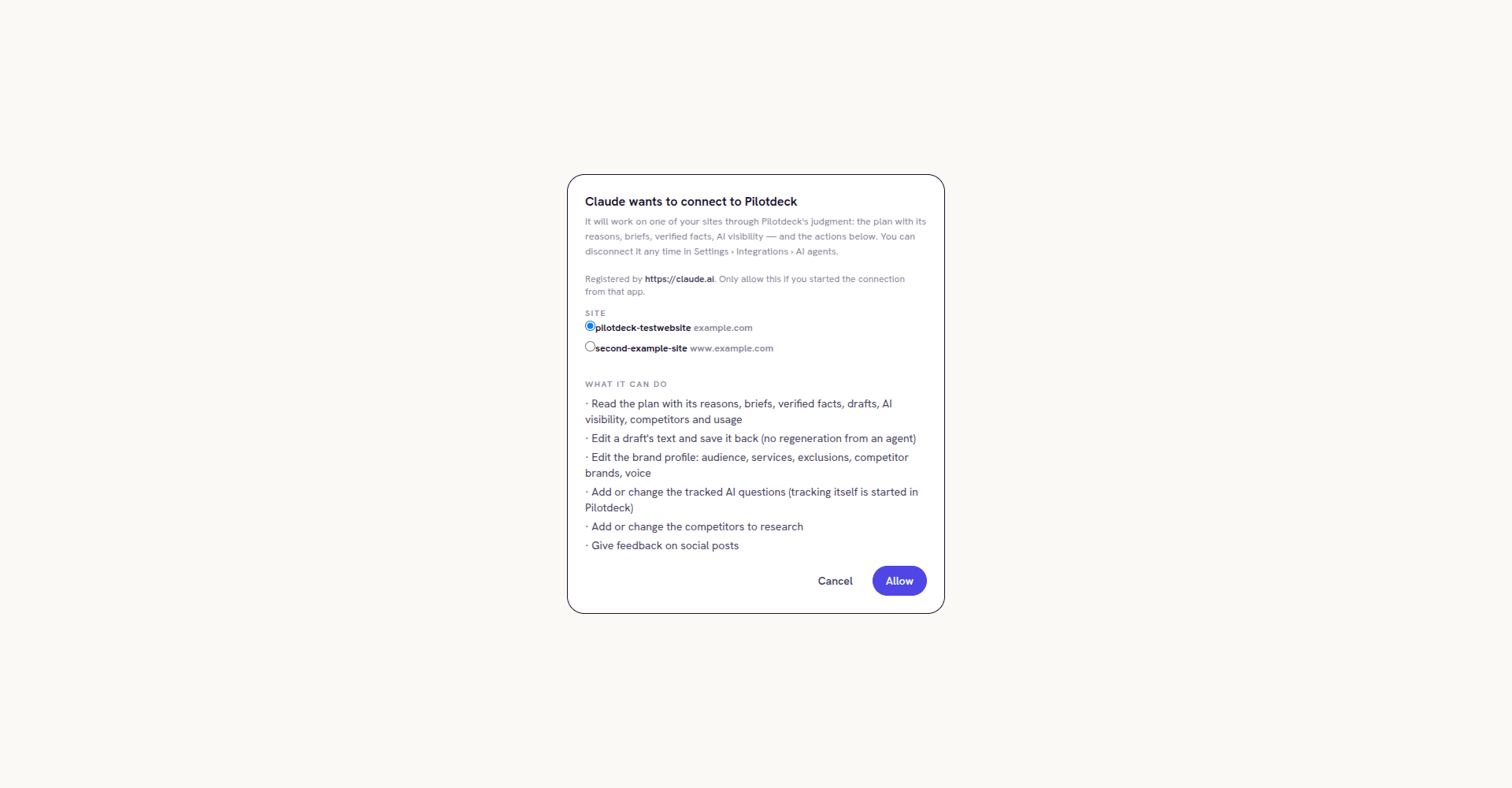
*The sign-in page. Check the registered address and the site, then decide. Sample values.*
> [!WARNING]
> **Only allow a connection you started.** If you did not just click Connect in Claude yourself, or the registered address is not one you recognise, click **Cancel**.
## Step 3: Check what Claude can do and click Allow
*Who: you*
The **What it can do** list shows everything Claude gets for this site:
- Read the plan with its reasons, briefs, verified facts, drafts, AI visibility, competitors and usage
- Edit a draft's text and save it back (no regeneration from an agent)
- Edit the brand profile: audience, services, exclusions, competitor brands, voice
- Add or change the tracked AI questions (tracking itself is started in Pilotdeck)
- Add or change the competitors to research
- Give feedback on social posts
Click **Allow**. You return to Claude and the connector shows as connected. The sign-in page stays open for 10 minutes. After that, start again from Claude.
## Step 4: Check it works
*Who: you, to check the result*
Start a new chat and ask "which PilotDeck site are you connected to?". Claude names the site's domain and gives a short summary of what PilotDeck is working on. In PilotDeck, the connection now appears in Settings > Integrations under **AI agents (MCP)**, named after the app, with a last used time.
## What Claude can read and change
Claude uses PilotDeck tools behind the scenes. You do not need to name them, but knowing what each one does helps you ask for the right thing.
### Things Claude can read
| Area | What Claude sees |
| --- | --- |
| Site and activity | The site's domain, publish mode and draft handling, today's summary, and what PilotDeck is doing now or waiting on you for. |
| Content plan | Every planned topic with its tier (ready, stretch or foundation), the reason it is on the plan, funnel stage, demand, week and status. Also the full pool of researched topics. |
| Topics and briefs | One topic in depth: who ranks on page one, the questions people ask, and the brief with its angle and outline once it is written. |
| Drafts | Every item in the pipeline with its stage, and the full text of any draft with its title, meta description and review state. |
| Brand profile and facts | Your audience, services, service areas, exclusions, competitor brands and voice, plus the verified facts about your business, each with the page it came from. |
| AI visibility | Your tracked questions, whether AI answers name your business, which brands they name instead, and the sources they cite. |
| Competitors and social | The competitors found for your topics and their review state, and your social post queue. |
| Usage | This billing period's content pieces, social ideas and tracked AI questions, used and limit. |
Claude can also **check a draft** against the same rules PilotDeck's own writer must pass: structure and style rules, your banned words, and every price, trial, free plan or guarantee claim compared with your verified facts. The check is rule based and free, so Claude can run it on every revision. It changes nothing.
### Things Claude can change
| Action | What happens |
| --- | --- |
| Save an edited draft | Saved as a new version, the same way as an edit in the PilotDeck editor. Earlier versions are kept. Works on drafts waiting for review, sent back for changes or approved, not on published ones. Claude never regenerates a draft. |
| Edit the brand profile | Only the fields Claude sends change. A list it sends, such as services, replaces the whole stored list. New articles use the change straight away; research picks it up at the next monthly refresh. |
| Add a tracked AI question | The question is always saved. Whether it is checked each week depends on your plan's limit and your choice in PilotDeck, so Claude may report it as saved but not checked yet. |
| Change a tracked AI question | Changing the wording clears the answers recorded for the old wording. The next scheduled check fills them again. Changing only the type keeps them. |
| Set the competitors to research | Only while the competitor review is open. Claude sends the full list to keep, anything left out is dismissed, the review closes and research of the kept competitors starts. Research uses your plan. |
| Give feedback on a social post | Records a thumbs up or down with reasons and a note. PilotDeck uses it for your next posts. Nothing is posted or edited. |
> [!TIP]
> Claude cannot publish, delete content, approve drafts, change billing, your publish mode, draft handling, CMS or social connections, or manage tokens. Those stay in PilotDeck.
## Things to ask Claude
- What articles are planned for my site this month, and why?
- Which drafts are waiting for my review?
- Check my latest draft against my brand rules and verified facts, fix any problems and save it back.
- Show me the brief for my next topic and tell me which questions it should answer.
- Which of my tracked questions mention my business in AI answers, and who shows up instead?
- Add "best family dentist near me" as a tracked AI question.
- What is PilotDeck waiting on me for right now?
- How much of my plan have I used this month?
Before Claude changes something, it usually asks you to confirm. Read what it plans to send, especially for the brand profile and competitors, where a list replaces the stored one.
## How long the connection lasts
- Claude renews its access in the background, so you do not need to sign in again while you use it.
- Access lapses if Claude has not renewed it for 90 days, which happens when the connection sits unused. Connect again from Claude.
- In Settings > Integrations, the connection shows an expiry date. It moves forward each time Claude renews access.
- Each connection can make up to 60 requests a minute. If Claude says it is being slowed down, wait a minute and ask again.
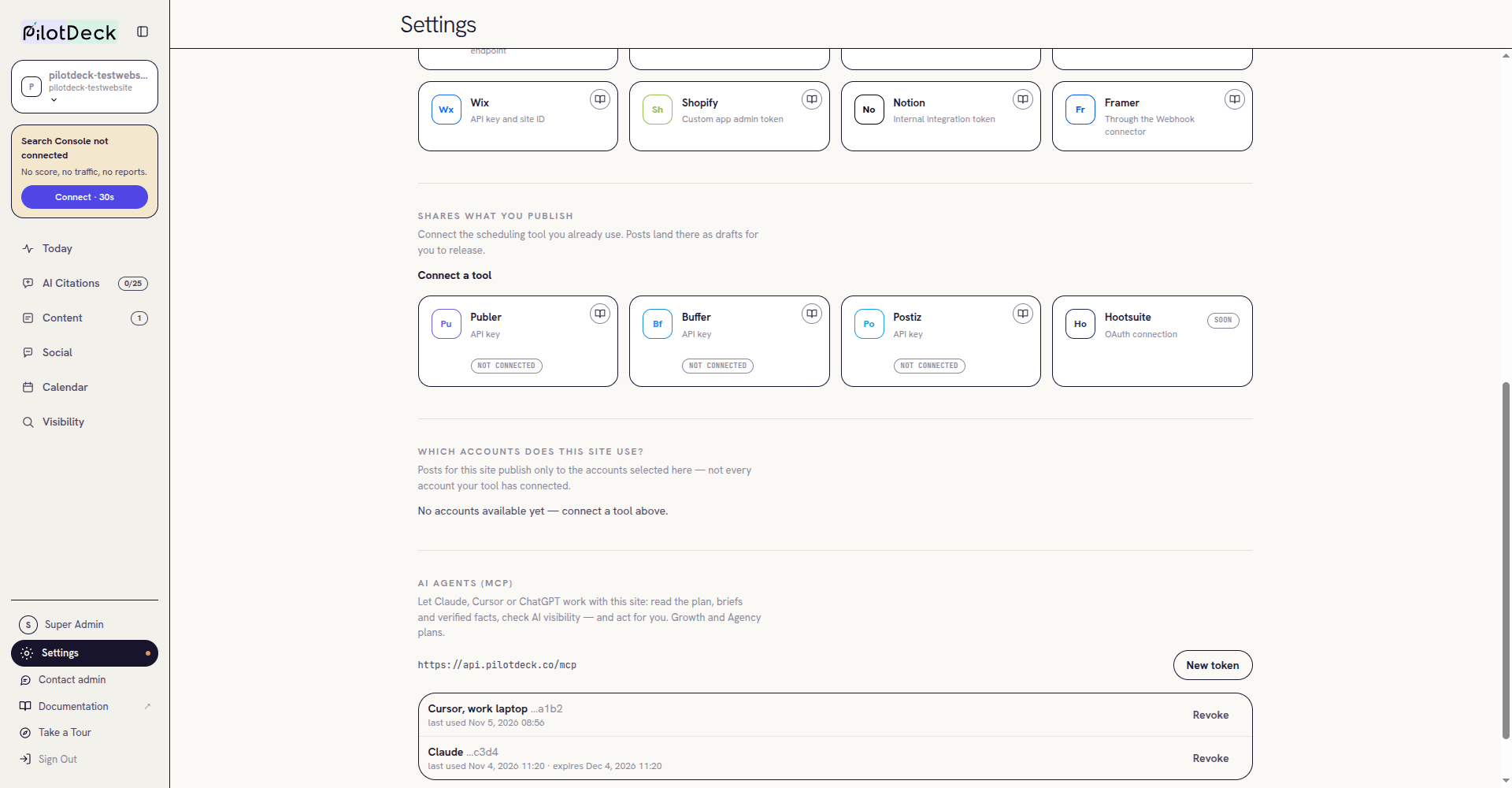
*The connection appears in Settings > Integrations under AI agents (MCP), with its expiry date. Sample values.*
## Stay in control
- Changes made through Claude go through the same checks as changes in the app, and edited drafts show in the draft's version history.
- Text Claude reads elsewhere, such as a web page or a document, can contain instructions meant to mislead it. Check what Claude proposes before you let it change your brand profile or competitors.
- Connect only from your own Claude account, and revoke connections you no longer use.
## Disconnect Claude
You can stop access from either side.
- In PilotDeck: open Settings > Integrations, find the connection under **AI agents (MCP)** and click **Revoke**, then **Revoke token**. Access stops straight away, and Claude cannot renew it.
- In Claude: open Settings > Connectors and disconnect PilotDeck. If the connection still shows in PilotDeck afterwards, revoke it there too.
To give Claude a different site, disconnect and connect again, then pick the other site.
## Troubleshooting
| You see | What to do |
| --- | --- |
| "This sign-in request expired" | The sign-in page is valid for 10 minutes. Start the connection again from Claude. |
| "This sign-in request was already answered" or "was not found" | The request was used or is no longer valid. Start the connection again from Claude. |
| "Your role can't connect AI agents to this account" | Ask the account owner or an admin to connect Claude. |
| The no-plan note, and **Allow** is off | Your account does not have an active PilotDeck plan: the subscription was cancelled, a payment failed or the trial ended. Contact support if you think this is wrong. |
| "You have no site yet" | Finish onboarding for a site in PilotDeck first. |
| "Pilotdeck doesn't recognise the app that sent you here" | Remove the connector in Claude, add it again and connect. |
| Claude says the connection stopped working | The connection was revoked, lapsed after a long time unused, or your plan is no longer active. Disconnect in Claude and connect again. |
| Claude says it is being slowed down | The connection made more than 60 requests in a minute. Wait a minute and ask again. |
## Common questions
**Can Claude publish to my website?**
No. Claude can save an edited draft back to PilotDeck. Publishing still happens only through PilotDeck, in the publish mode you chose.
**Can Claude see my other sites?**
No. A connection covers the one site you picked when you clicked Allow. To use another site, connect again and pick it.
**Does connecting Claude use my plan's content allowance?**
Reading and checking drafts does not. Setting the competitors to research starts research that uses your plan, the same as doing it in the app.
**Can I see what Claude changed?**
Yes. An edited draft is saved as a new version in the draft's history, with a note on what changed. Brand profile, question and competitor changes show in the matching screens in PilotDeck.
**Where can I get help?**
Email [support@pilotdeck.co](mailto:support@pilotdeck.co).
## Official documentation
- [Get started with custom connectors (Claude Help Center)](https://support.claude.com/en/articles/11175166-get-started-with-custom-connectors-using-remote-mcp)
- [What is the Model Context Protocol](https://modelcontextprotocol.io/introduction)
## Related guides
- [Connect an AI agent with an MCP token](https://docs.pilotdeck.co/ai-assistants/mcp-token.md): Personal MCP token
- [PilotDeck MCP server reference](https://docs.pilotdeck.co/ai-assistants/mcp-server.md): Tools, limits and errors
Need help? [Contact support](mailto:support@pilotdeck.co).