# AI assistants
> Connect an AI assistant such as Claude to one PilotDeck site, so you can review your plan, check drafts and track AI visibility in a chat.
PilotDeck is a growth platform for SEO, GEO and AI visibility. It researches, writes and publishes content for a website, and drafts wait for approval by default.
Web page: https://docs.pilotdeck.co/ai-assistants
- [Connect Claude to PilotDeck](https://docs.pilotdeck.co/ai-assistants/claude.md): Connect Claude to one PilotDeck site to review your plan and drafts, check a draft against your rules and track AI visibility from a chat.
- [Connect an AI agent with an MCP token](https://docs.pilotdeck.co/ai-assistants/mcp-token.md): Create a PilotDeck token in Settings and add it to Claude Code, Cursor or another MCP client to work with one site.
- [PilotDeck MCP server reference](https://docs.pilotdeck.co/ai-assistants/mcp-server.md): Every tool, ability, limit and error code of the PilotDeck MCP server, plus how sign-in and tokens work, for people building or debugging an AI agent.
- Connect ChatGPT to PilotDeck (Soon)
## How it works
PilotDeck runs an MCP server, the open standard AI assistants use to connect to other apps. Once connected, your assistant answers from your live PilotDeck data and can make a small set of changes on one site. Publishing stays in PilotDeck, so nothing reaches your website without your approval.
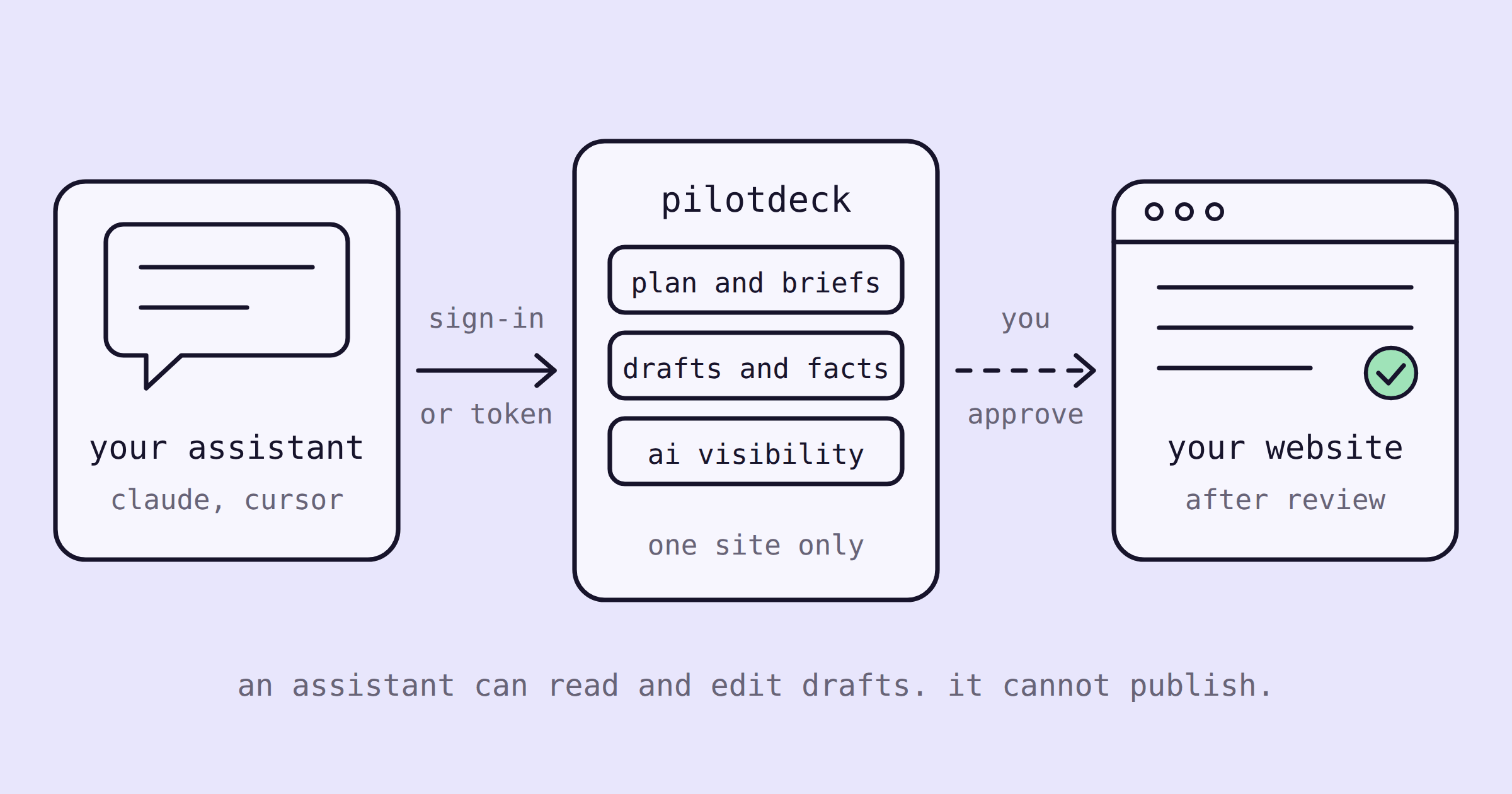
*Your assistant works with one PilotDeck site. Approved content is the only thing that reaches your website.*
## Choose how to connect
Both ways give the agent the same abilities on one site, and both appear in the same list in Settings > Integrations, where you can revoke them.
| | Sign-in | MCP token |
| --- | --- | --- |
| Best for | Claude on the web, desktop or mobile, and Claude Code | Cursor, scripts and any MCP client that can send a header |
| How you connect | Sign in to PilotDeck and click Allow | Create a token in Settings and paste it into the agent |
| Expiry | Renewed by the app while in use | Does not expire until you revoke it |
| Guide | [Connect Claude to PilotDeck](https://docs.pilotdeck.co/ai-assistants/claude) | [Connect an AI agent with an MCP token](https://docs.pilotdeck.co/ai-assistants/mcp-token) |
## Technical reference
Building or debugging an agent? The [PilotDeck MCP server reference](https://docs.pilotdeck.co/ai-assistants/mcp-server) lists every tool with its inputs, the scopes, limits, sign-in endpoints and error codes.